
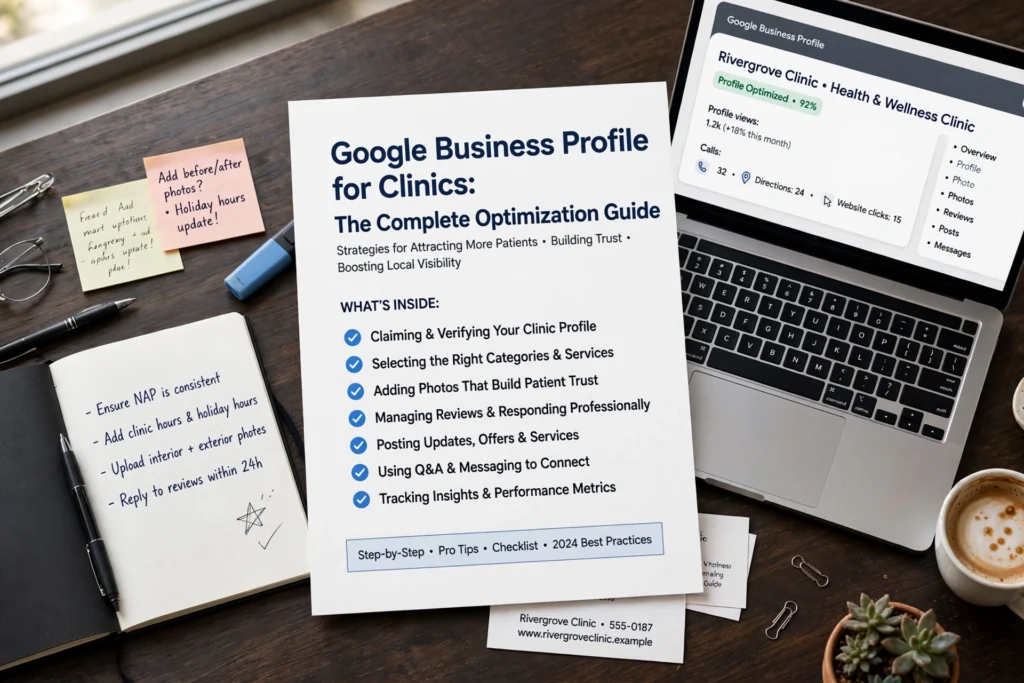
When someone searches for a doctor, dentist or specialist near them, the first thing they often see is not a website. It is a Google Business Profile, a name, a map pin, opening hours, a phone number, photos and reviews. For an eligible clinic, that profile is a free way to present accurate information in Google Search and Maps at the exact moment a patient is deciding where to go.
This guide walks a clinic manager through setting up, verifying, optimizing, maintaining and troubleshooting a profile while following Google’s policies and protecting patient privacy. One caution up front, a profile is not a substitute for a well maintained website or a full local SEO strategy. It works best alongside clear location pages, accurate information across the web and a good patient experience. Nothing here guarantees higher rankings or protects a profile from suspension. The aim is accuracy, compliance and usefulness.
What Is Google Business Profile?
Google Business Profile is the current official name of the free tool that lets eligible businesses manage how they appear in Google Search and Maps. The profile is a structured record of your real world business, and Google combines it with other sources, so keeping it correct matters.
For a clinic, a profile typically shows:
Business information: name, category, hours, services and a short description.
Location and directions: an address and map pin, with a Directions button. Clinics that serve patients only at other locations are a special case covered below.
Phone and website access: one tap calling and a link to your site or an appointment page.
Reviews: patient ratings and written feedback, which you can respond to.
Photos: images of the building, entrance, reception and team.
Performance data: for the profiles that have it, summaries of how people interacted with the listing.
Two things are worth remembering. First, Google’s guidelines are built around representing your business accurately to users. Second, other people can suggest edits to your listing, so an unattended profile can drift away from reality.
Are Clinics Eligible for a Google Business Profile?
Not every business is eligible, and the rules depend on your business model. Google’s published eligibility and representation guidelines are the authority here. Read them in full before you create or claim anything, and treat the points below as a map of the questions to ask rather than a ruling on your clinic.
Physical clinic locations. In general, a business is eligible when it has a physical location that customers can visit during stated hours, or when it serves customers by traveling to them. Online only businesses are not eligible. A staffed clinic where patients are seen in person is the standard case.
Virtual only operations. A telehealth only service with no location patients can visit, and no in person service, does not fit a storefront profile. Virtual offices and P.O. boxes are not acceptable addresses. If your model mixes in person and virtual care, describe the real in person location accurately and do not present a virtual address as a clinic.
Shared medical buildings. Many clinics rent suites in a medical building. A real, staffed suite is a real location, but it should be represented with its actual suite details and the name patients see on signage. Do not use a building you do not actually operate from.
Departments within hospitals. Google has specific guidance for departments within larger institutions such as hospitals, universities and government buildings, and these may be allowed to have separate pages under the conditions it describes. Check the current departments guidance before creating anything, and coordinate with the hospital so you do not create a duplicate.
Individual practitioners. Google treats public facing professionals such as doctors and dentists as a distinct case, covered in its own section below. Support or non public facing staff are not eligible for practitioner profiles.
Because eligibility depends on facts, such as who owns the location, who answers the phone, and whether patients can walk in, document the answers before you start. If you cannot clearly answer “is this a real place where patients are served?”, resolve that first.
How to Set Up and Verify a Clinic Profile
Follow this sequence. It is deliberately conservative, since most profile problems start with a rushed setup.
- Determine eligibility. Read Google’s “Guidelines for representing your business on Google” and confirm your clinic, and any practitioner, fits.
- Search for an existing listing. Google often already has a listing for a clinic’s address, created by data sources or by users. Search for your clinic name and address in Google Maps. Creating a second profile for the same location is a policy problem.
- Claim the correct profile or create one if appropriate. If a listing exists, request ownership through the process Google offers. If it is already owned by someone else, such as a former employee, an agency or a hospital group, follow the ownership request or appeal flow rather than creating a duplicate. Create a new profile only if none exists for the location.
- Enter accurate business information. Use the real-world name, a real address, a phone number that reaches the clinic and a website that represents this location.
- Select the most accurate category. Use the primary category that best describes what the clinic is (see the next section).
- Complete the available verification process. Google chooses which methods it offers for each business, and these can change. Depending on your situation they may include options such as phone, text, email or video. Follow the options shown in the profile and Google’s current verification instructions rather than relying on a blog post, including this one. Do not use a third party who offers to “get you verified” by misrepresenting your location.
- Review the public listing. After verification, view the profile as a patient would, on a phone, and check name, pin position, hours, phone, website and category.
- Establish authorized access. Add owners and managers using the Business Profile access controls, use business controlled accounts where possible, and keep a record of who has access.
If you are an agency or consultant acting for a clinic, keep the clinic owner informed about what you will do on the profile, and make sure the clinic remains the owner of the profile.
Optimizing Clinic Information
Once the profile is verified, accuracy is the optimization. Each field below should match the real world and your website.
Business name. Use the name patients see on your signage, website and when your phone is answered. Do not add services, specialties, cities or keywords such as “Best Dentist Downtown” unless those words are genuinely part of the real world name. Google’s guidelines tell businesses to avoid this, and keyword stuffed names are a common reason for edits and enforcement. The same applies to repeating the name in several scripts or languages. If you operate in a bilingual market, check the current naming guidance before adding a second language version.
Address. Use the real, patient facing address, including the suite or floor if that is how patients find you. Do not use a virtual office, a mail drop or a P.O. box. Make sure the map pin sits on the entrance patients should use.
Phone number. Use a number that reaches this location, preferably a local one, rather than a generic call center number when you can avoid it. Make sure someone answers it during published hours.
Website. Link to a page that represents this location. For a multi location group, use a location specific page rather than the homepage.
Hours and holiday hours. Enter regular hours accurately, and update special hours before holidays, closures and weather events. Wrong hours are one of the quickest ways to frustrate patients and generate negative reviews. If you offer separate hours for particular services, use the options provided in the profile.
Appointment links. Add an appointment link only where a patient can really book or request an appointment.
Services. Use the services or products sections where available to describe what patients can actually receive at that location. Keep descriptions factual and avoid claims about outcomes.
Business description. Write a short, plain description of what the clinic is and who it serves. Google’s content guidelines prohibit promotional offers, links, and irrelevant or misleading content in descriptions, so stay factual and check the current rules before editing.
Accessibility information. Where the profile offers attributes such as wheelchair accessible entrance or parking, fill them in only if true. For many patients this is among the most useful information on the page.
Photos. Add authentic photos, as described in the photos section below.
Profiles for Doctors and Other Practitioners
Google’s guidelines distinguish between an organization and an individual practitioner. Practitioners can sometimes have their own profile, but the rules depend on the setup, so read the current practitioner guidance in the representation guidelines.
The general pattern in Google’s guidance is:
A sole practitioner at their own location can usually use a profile for the practice or the practitioner, not both competing for the same location.
Several public facing practitioners at one location: the organization should have its own profile for the location, and eligible practitioners may have their own pages as described in Google’s guidance, with the practice profile named for the practice.
Practitioners who work at multiple locations should follow the guidance on how those profiles should be represented.
A practitioner should not create multiple profiles to cover different specializations.
Support and non public facing staff are not eligible.
Practitioner profiles can include a professional title or degree where Google’s guidelines allow it.
Before creating practitioner profiles, ask whether each one is justified. A profile can be valuable for a doctor who patients search for by name or who sees patients at more than one location. But unnecessary duplicates split reviews, confuse patients and can trigger Google’s duplicate and quality checks. Never present one organization as several independent businesses without a valid basis, and keep practitioner names and details consistent with your website and licensing information.
Google Reviews for Clinics
Reviews strongly influence patient trust, and they are also where clinics most often create privacy or policy problems.
Ethical review requests. You may invite patients to leave reviews, for example through a general link on a receipt, an after visit message, or a sign. Keep requests neutral and voluntary. Do not offer incentives such as discounts, gifts or entry into a drawing in exchange for reviews, and do not ask only happy patients. Do not write reviews yourself, have staff or relatives post reviews, or pressure patients. These practices violate Google’s policies and, in many places, consumer protection rules.
Follow platform policies. Google’s contribution and review policies are the reference. Check them regularly, since enforcement and rules evolve.
Responding to positive reviews. Thank the reviewer briefly and generically. Do not confirm that the reviewer was a patient, mention treatments, or add details. A reply such as “Thank you for your kind words. We’re glad you had a good experience” is safe, while “Thanks for coming in for your knee surgery follow up” is not.
Responding to negative reviews. Reply promptly, professionally and without arguing. Apologize for the experience in general terms, state that you take feedback seriously, and invite the person to contact the clinic through a general phone number or email so the matter can be handled privately. Never confirm or deny that the person was a patient and never discuss their care, diagnosis, appointments or billing in public. Even if the reviewer has shared their own details, your reply should not repeat or confirm them.
Reporting policy violating reviews. If a review appears to violate Google’s policies, such as spam, fake or conflict of interest content, off topic content, or harassment, use the report option and follow the current process. A review you simply disagree with, or that is negative, is generally not removable.
Managing recurring complaints. Treat patterns as operational feedback. If many reviews mention waiting times, phone access or billing confusion, fix the underlying issue and update your hours, scheduling or communication. A tracking sheet reviewed monthly by management turns reviews into a quality improvement tool.
Privacy first. Consider a staff policy, who may reply, a template library that has been reviewed for privacy, and a rule that nothing about any patient’s care appears in a public response. Check the privacy laws that apply where you operate with your compliance adviser.
Appointment Links and Patient Journeys
A profile is often the first step in a patient journey that continues on your website or booking system. A good journey is short and clear.
- Send patients to the right page. The appointment link should lead to a page that clearly names the relevant clinic location or practitioner and offers a way to book or request an appointment. Avoid sending every location to one generic homepage.
- Test the links regularly. Click your website, appointment and phone links from a phone every month and after any website change. Broken or redirected links are a silent cause of lost appointments.
- Do not mislead. The destination must match what the link promises. A link labeled for booking should not lead to a sales page for an unrelated service.
- Make the mobile experience accessible. Most local searches happen on phones. Pages should load quickly, work with screen readers, and show the phone number, address and hours.
- Use privacy conscious forms. Collect only what you need to schedule, avoid asking for detailed medical information in a general web form, use secure transmission, and explain how data is used. Check requirements with your compliance adviser.
Where Google’s booking features are available to your business type, follow the provider and eligibility information in the current help pages instead of assuming they are available.
Managing Multiple Clinic Locations
A group with several sites needs process more than tools.
Ownership and permissions. Decide who owns each profile and keep it under an organizational account. Use the roles in Business Profile access settings, and remove former employees and agencies promptly.
Accurate individual location information. Each location needs its own address, phone number, hours and category, not copied from a head office. Google asks that the phone number and website represent the individual location.
Profile consistency. Keep name format, brand usage and descriptions consistent with signage and website, following Google’s guidance for chains and brands.
Location specific URLs. Link each profile to its own location page, with that site’s hours, team, services and booking route.
Centralized monitoring. Use a shared calendar or dashboard to watch reviews, questions, suggested edits and notifications for all sites.
Staff responsibilities. Assign one named person per location for day to day accuracy and one central owner for policy and access.
Change management. Build a checklist for when a clinic opens, moves, renames or closes. For a relocation, update the address and notify patients. For a closure, mark the profile as closed using the options provided rather than deleting it or leaving it open and unattended.
Bulk upload and management tools can save time, but each location must still be accurate on its own. Never create profiles for places where you have no staffed, patient facing presence in order to appear in more areas.
Google Business Profile Performance

Google provides performance reporting for profiles. Features vary, and Google notes that only the metrics that apply to your business appear, so do not assume every clinic sees the same reports. Current help documentation lists metrics such as:
Search and Maps visibility: how often the profile appeared, and the searches that led to it, where available.
Calls: clicks on the call button.
Directions: requests for directions to your location. Google has changed how it counts these, so compare periods carefully.
Website clicks: clicks on the website link in your profile.
Messages: conversations started through messaging, where messaging is available.
Bookings: completed bookings, available only when bookings are managed through a supported booking provider.
How to interpret them:
Engagement is not appointments or revenue. A call click does not mean a booked patient, and a direction request does not mean an attended visit. Combine profile data with your own call logs, scheduling system and website analytics to understand real results.
Look at trends, not single days. Compare similar months and account for seasonality, holidays and changes to hours.
Match actions to context. Many views with few actions may suggest weak photos, unclear information or reviews that need attention. Few website clicks may mean the link or landing page needs work.
Check your own measurement. Use tracking and call tracking carefully so you do not change the number or website that Google verifies. Follow Google’s guidance on phone numbers and tracking.
Do not report numbers to leadership as proof that the profile produces revenue unless your own systems back that up.
Suspensions, Incorrect Information, and Troubleshooting
Problems fall into a few recurring groups.
Incorrect business information. Wrong hours, a moved pin or old phone numbers often come from user-suggested edits or stale data. Fix them in the profile, then check again later in case an edit is reversed.
Duplicate listings. Duplicates usually come from old listings, previous names, practitioner listings or accidental creation. Google’s guidelines tell businesses not to create more than one page for each location. Use the options in Business Profile to report or request resolution of duplicates according to Google’s current instructions, rather than creating more profiles.
Unauthorized edits. Review access, remove unknown managers, and check your notifications. Use the ownership request and reporting flows Google provides.
Verification difficulties. First confirm that the name, address, category and business model are accurate and compliant, since verifying a profile that conflicts with the guidelines tends to fail. Follow the verification options Google offers for your profile. If you are asked to provide evidence, such as a video, show the genuine location and your connection to it, following the current instructions.
Policy violations. Compare the profile with the representation guidelines and fix the underlying problems: a keyword-stuffed name, an ineligible address, a misleading category or prohibited content.
Suspended profiles. If a profile is suspended, read the notice, review the guidelines, correct the cause, and use Google’s current reinstatement or appeal process, providing accurate information. No consultant can guarantee reinstatement, because the decision belongs to Google. Be cautious about anyone who promises it.
Never create a replacement profile, use a fake address or alter documents to avoid enforcement. This can make the situation worse, harms trust and may be treated as further abuse.
Common Clinic Profile Mistakes
Keyword stuffing: adding “Best,” city or specialty terms to the business name or description.
Incorrect categories: picking categories for treatments you do not provide, or leaving a general category when a more accurate one exists.
Fake locations: using virtual offices, mail drops or addresses where no one is available to patients.
Duplicate profiles: creating multiple profiles for the same location or several for one practitioner.
Inaccurate hours: forgetting holidays, vacations or changed schedules.
Misleading appointment links: pointing to a different clinic, a dead page or an unrelated offer.
Unprofessional review responses: arguing, blaming patients or using templates that ignore the complaint.
Privacy violations: confirming patient status, discussing care in replies, or posting identifiable patient images without authorization.
Neglected access controls: leaving former staff or agencies as owners or managers.
Failure to update closed or relocated offices: leaving a moved or closed clinic marked open.
Frequently Asked Questions
Is Google Business Profile free? Yes. Creating and managing a Business Profile is free. Be wary of anyone who charges to “guarantee” a listing or ranking.
Can a clinic have multiple profiles? One profile per location is the general rule, so a clinic with several real, separate locations can have a profile for each. Google’s guidelines say not to create more than one page for each location. Check the current guidance on departments and practitioners.
Can each doctor have a separate profile? Sometimes. Google has specific guidance for individual practitioners, who are public-facing professionals, and for organizations with several practitioners at one location. Do not create unnecessary duplicates or several profiles for one practitioner.
How should a clinic choose its primary category? Choose the category that best describes what the clinic is, from the list available in the platform. Use secondary categories only for genuinely distinct services, and list specific treatments in services and on your website.
Can keywords be added to the business name? No, not unless they are genuinely part of the real-world name used on signage and in other places. Adding extra keywords can lead to edits or enforcement.
How should a clinic handle a negative review? Respond politely and briefly, apologize in general terms, move the conversation offline, and never confirm patient status or discuss care. Report it only if it violates Google’s review policies.
What causes profile suspensions? Google does not always give detailed reasons, but common triggers include guideline violations such as ineligible or misrepresented locations, keyword stuffed names, duplicate profiles and failed or misleading verification. Review the notice and the guidelines, fix the cause, and use Google’s appeal process.
Can clinics request reviews from patients? Yes, if requests are voluntary and neutral and follow Google’s policies. Do not offer incentives, do not gate reviews, and do not pressure patients.
How often should profile information be updated? Whenever something changes, and checked on a regular schedule, for instance monthly for hours, links and phone, and before holidays. Also review after any move, rename, renovation or change in services.
Does a Google Business Profile guarantee better local rankings? No. An accurate, complete profile gives Google better information and gives patients a better experience, but no one can promise a ranking or rule out suspension. Local results depend on many factors, including relevance, distance and prominence, which clinics only partly control.
Conclusion
The strongest clinic profile is not the most heavily optimized one. It is the one that is eligible, accurate, maintained and useful to patients: the right name, the right place, the right hours, a phone that is answered, a link that works, honest photos and respectful review replies. Pair it with a good website and a broader local SEO plan, assign clear owners, and revisit Google’s guidelines regularly, because they change. A profile you can trust is one that patients can trust, too.